Bellman Visit System: Full Setup & Installation Guide

Everything you need to get the Bellman Alerting System running from scratch - understanding the components, placing them correctly, customizing alerts, expanding coverage, and troubleshooting the most common issues.
Before You Start: What Makes This System Different
The Bellman Alerting System - previously known as the Bellman Visit system and still widely referred to by that name - is a dedicated RF wireless alerting platform designed for people who are deaf, hard of hearing, or who otherwise can't rely on audio signals to know what's happening in their home. It covers doorbell alerts, phone calls, smoke and CO alarms, baby monitoring, and more, delivering alerts through flashing lights, vibration, and amplified sound instead of relying on your ears.
The most important thing to understand before starting setup is also the most reassuring: this system requires no Wi-Fi, no app, no pairing, and no technical expertise to get working. Every bundle sold through Bellman ships with transmitters and receivers factory pre-linked. In most cases, setup means placing the transmitter, placing the receiver, inserting or connecting power, and confirming everything works with a quick test. That's it.
This guide goes deeper than the quick-start cards in the box. It covers the full component map, step-by-step placement and installation for every transmitter type, receiver configuration, the LED color system, signal pattern customization, radio key management for interference-free operation, the Bluetooth Bridge and Watch setup for those adding that layer, troubleshooting, and expansion strategy. Whether you're setting up a single-bundle starter system or building out whole-home coverage, this is the complete reference.
Start with Section 1 (System Overview) to understand how the pieces fit together, then jump directly to the transmitter section relevant to your setup. If you're installing multiple transmitters, work through each in sequence. The troubleshooting section at the end addresses the most common issues users encounter. For product-specific technical documentation, each component's datasheet and user manual are linked from its product page on us.bellman.com.
Section 1: System Overview - How the Pieces Fit Together
The Bellman Alerting System is built on a two-layer architecture. Transmitters detect events in your home - a doorbell ring, a phone call, a smoke alarm trigger, a baby crying - and broadcast a wireless RF signal. Receivers pick up that signal and deliver the alert to you through light, vibration, or sound. One transmitter can simultaneously trigger every receiver in the home. Multiple transmitters can all feed into the same set of receivers. You build the system by choosing which events you want to monitor (transmitters) and how you want to be notified (receivers).
All Transmitters at a Glance
Doorbell Transmitter
Detects your existing doorbell chime using dual microphone technology. Placed near the chime speaker. Up to 5-year battery life.
View product →Push Button Transmitter
Battery-powered button mounted at the door or worn on a lanyard. Triggers the system on press - no chime needed. Up to 2-year battery life.
View product →Telephone Transmitter
Connects via RJ11 to landline; includes input for the Mobile Phone Sensor for cell phone coverage. Up to 5-year battery life.
View product →Mobile Phone Sensor
An optical sensor is placed on a smartphone screen. Detects screen-light activation from calls, messages, and app notifications.
View product →Baby Cry Transmitter
Placed 0.5-2 meters from the crib. Adjustable sensitivity and delay. Tamper-resistant. Compatible with contact mat accessory.
View product →Smoke Alarm Transmitter
Ceiling-mounted smoke and heat detector. Mounts like a standard smoke alarm. Up to 10-year battery life. 500 ft wireless range. UL217 certified.
View product →CO Alarm Transmitter
Carbon monoxide detector. Ceiling or wall-mounted. Up to 5-year battery life. Sends a distinct signal from smoke - color-coded on receivers. UL2034 certified.
View product →Bluetooth Bridge Transceiver
Converts the RF alerting system into Bluetooth. Connects to the Watch Receiver and the free Bellman Assistant app. Required for Watch and smartphone integration.
View product →All Receivers at a Glance
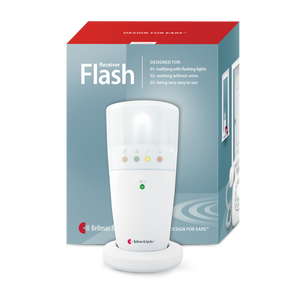
Flash Receiver
Plug-in strobe flash unit with color-coded LED indicators. ~30 candela output. Battery backup for power outages. Wired Bed Shaker port included.
View product →Pager Receiver
Wearable vibrating pager with color-coded LED icons. Up to 3-week battery life. Belt clip or sleeve carry. Pairs with Pager Charger + Bed Shaker for overnight coverage.
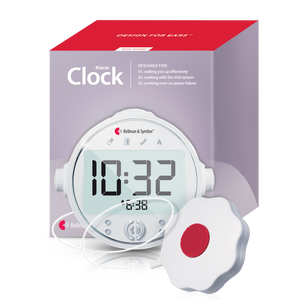
View product →Alarm Clock Receiver
Bedside unit combining alarm clock, up to 100 dB sound, flash alerts, and wired Bed Shaker port. Battery backup. Night light. High-contrast display.
View product →Portable Receiver
Battery-powered with adjustable sound output up to 93 dB and an LED indicator. Fully mobile - no charging required. Wired Bed Shaker port available.
View product →Watch Receiver
Wrist-worn receiver with vibration alerts and event-specific icon display. Up to 1 week of battery per charge. Requires Bluetooth Bridge Transceiver.
View product →Bed Shaker
Flat vibrating disc placed under pillow or mattress. Connects via cable to Flash Receiver, Alarm Clock Receiver, Pager Charger, or Portable Receiver. Not a standalone device.
View product →Section 2: Setting Up Your Receiver(s) First
Always start with the receiver. It's the component that delivers the alert to you, and verifying it's working before adding transmitters makes the setup process cleaner - you'll immediately see or feel a response when you test each transmitter rather than wondering whether the issue is with the transmitter or the receiver.
Flash Receiver Setup
- Choose placement location. Select a wall outlet in the room where you spend the most time during the day - living room, kitchen, or home office. The Flash Receiver should be in your natural field of vision or peripheral view, not behind furniture or facing a wall. For multi-room coverage, add a second Flash Receiver in a secondary high-traffic room. Tip: Place it at eye level where possible. A flash at ankle height behind a sofa will be missed; one at outlet height on an open wall won't.
- Plug in and power on Insert the Flash Receiver into the wall outlet. The unit will power on automatically. The LED indicators will briefly illuminate to confirm startup. No switches, no pairing steps.
- Connect the Bed Shaker (if included). If your bundle includes a Bed Shaker for overnight coverage, connect its cable to the Bed Shaker port on the Flash Receiver. Place the disc under your pillow or mattress pad - not loose on top of the bed. For nighttime use, the receiver and bed shaker can remain connected permanently; the bed shaker only activates when an alert fires.
- Verify battery backup All plug-in receivers include battery backup that activates automatically during power outages and maintains full function for up to 48 hours. No configuration needed - this is automatic.
Pager Receiver Setup
- Initial charge Insert a fresh AA battery into the Pager Receiver before first use. The pager is powered by a battery rather than continuous charging, giving it up to three weeks of use before a battery change is needed. No initial charge cycle required.
- Attach the clip. The included belt clip slides onto the back of the pager. Attach it to your waistband, belt, or pocket edge - anywhere the pager maintains contact with your body so you can feel vibration reliably. A pager loose in a deep pocket may not transmit vibration effectively.
- Set up the Pager Charger dock (if included). Place the Pager Charger dock on your nightstand and plug it in. When you place the pager in the dock at night, the dock's built-in Bed Shaker port activates - connect the Bed Shaker cable here. Overnight alerts will then trigger both the pager (in the dock) and the bed shaker simultaneously. Remove the pager from the dock each morning to resume portable carry.
Alarm Clock Receiver Setup
- Place on the nightstand. Position the Alarm Clock Receiver on the nightstand at a comfortable viewing distance - close enough to read the display from bed, with the LED panel facing toward the sleeping position. The Bed Shaker cable port is on the side or back of the unit.
- Plug in and set the clock. Connect to the wall outlet. Use the time-set controls on the receiver to set the current time. The high-contrast digital display is readable in low-light conditions; the built-in night light can be turned on or off independently.
- Set the wake alarm. Use the alarm controls to set your morning wake time. The alarm triggers sound (up to 100 dB), flash, and bed shaker simultaneously - no separate alarm clock needed. Confirm the alarm is set to the correct AM/PM before going to sleep.
- Connect the Bed Shaker. Connect the Bed Shaker cable to the port on the receiver. Place the disc under the pillow or beneath the mattress pad - directly under where your torso or shoulder rests for maximum effect. Test by triggering the alarm briefly to confirm vibration.
Section 3: Setting Up Each Transmitter Type
Doorbell Transmitter
- Locate your doorbell chime speaker. Find the indoor chime unit - usually mounted in a hallway or near the front door. The Doorbell Transmitter needs to be placed close enough to hear the chime ring, typically within 3–5 feet. It does not connect by wire; it listens acoustically with its internal microphone.
- Mount the transmitter. Clean the mounting surface with the included wet wipe. Remove the protective film from the adhesive tape and press the transmitter firmly against the wall beside or below the chime. Alternatively, use the included screw and plug for a permanent mount. Ensure the microphone side faces toward the chime speaker. Tip: Avoid mounting in a location where ambient sounds (TV audio, kitchen noise) are consistently louder than the chime. If false triggers occur, try repositioning slightly farther from the noise source.
- Insert the battery. Open the transmitter front cover and insert a fresh battery (CR2032 or equivalent as specified in the unit's documentation). The transmitter activates automatically once the battery is installed.
- Test the detection. Have someone press the doorbell while you observe the receiver. The receiver should flash and/or vibrate with the doorbell-specific LED color (green by default) within 1-2 seconds of the chime sounding. If the receiver doesn't respond, check the battery connection and confirm the transmitter is within range of the receiver. Tip: If you also want a wireless doorbell option - without relying on the existing chime - the Push Button Transmitter can be mounted at the door as a standalone doorbell button, no chime required.
Push Button Transmitter
- Decide: door mount or wearable. The Push Button Transmitter works in both modes. As a door-mounted button, guests press it in place of a doorbell. As a wearable (using the included lanyard), it functions as a personal call-for-attention button - useful for partners or caregivers to summon the deaf or hard-of-hearing user from anywhere in the home.
- Door mount installation: Clean the wall surface beside the door with the included wet wipe. Remove the adhesive tape protective film and press the unit firmly to the wall in a weather-protected area (under an overhang or recessed entrance is preferable). The button should be at a comfortable pressing height for visitors. Use the included screw and plug for a permanent installation in higher-traffic settings.
- Insert the battery The Push Button Transmitter uses a long-life battery (up to 2 years). Open the back cover and insert as indicated. Once the battery is in, the unit is active with no other steps needed.
- Test the button. Press the button and confirm the receiver responds with the appropriate LED color and vibration/flash pattern. Each press should trigger the receiver within 1–2 seconds.
Telephone Transmitter + Mobile Phone Sensor
- Connect to the landline. Use the included RJ11 cable to connect the Telephone Transmitter between your landline phone and the wall phone jack. The connection runs: wall jack → Telephone Transmitter → telephone handset. The transmitter is now in the phone line and will detect the ringing signal electrically when a call comes in.
- Power the transmitter. Insert the battery as specified. The transmitter battery lasts up to 5 years under normal use - no need to monitor it frequently. Place the transmitter in a stable location near the phone, using the included mounting hardware if desired.
- Attach the Mobile Phone Sensor for cell coverage. Connect the Mobile Phone Sensor's cable to the 2.5 mm input port on the Telephone Transmitter. Place the Mobile Phone Sensor flat beneath your smartphone, with the optical sensor facing upward toward the phone's screen. When the smartphone screen activates from any incoming notification, the sensor detects the screen light and triggers the transmitter. Tip: The sensor activates when screen brightness exceeds 3 lux for more than 2 seconds. If you're getting too many alerts from routine app notifications, turn off non-essential app notifications in your phone's settings rather than adjusting the sensor itself.
- Test both detection paths. First, call your landline from another phone and confirm that the receiver responds. Then trigger a notification on your smartphone (ask someone to call or send a text) and confirm the sensor activates the receiver. Both tests should produce a receiver response within 2 seconds of the triggering event.
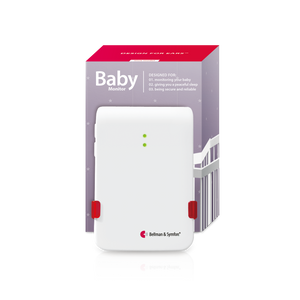
Baby Cry Transmitter
- Place in the nursery. Position the Baby Cry Transmitter 0.5 to 2 meters from the crib - close enough to detect crying clearly, far enough to avoid activating on normal breathing sounds. Mount on a wall or set on a stable surface, always out of reach of the child. Never place inside the crib or playpen.
- Insert the battery and power on. Open the front cover and insert a fresh battery as specified. The transmitter activates automatically. The LED will briefly indicate it is active.
- Set sensitivity level. Press the Sensitivity button on the left side of the transmitter - the LED color shows the current level. Press repeatedly to cycle through settings from low (filters out quiet sounds) to high (catches even soft vocalizations). Start at a medium setting and adjust over the first few days based on whether you're getting false triggers or missing genuine cries.
- Set delay: Press the Delay button to adjust how long a sound must persist before triggering an alert. A short delay catches any sustained cry immediately; a longer delay filters out brief self-resolving sounds. For newborns who need an immediate response, use a shorter delay. For older babies who often settle within a minute, a longer delay reduces unnecessary alerts. Tip: Getting these two settings right for your specific environment usually takes 2–3 days of real-world use. Don't lock them in on the first night - adjust after observing real performance.
- Test the system: Clap sharply near the transmitter or play a brief audio clip at a realistic crying volume, and confirm the receiver responds. Adjust sensitivity if the transmitter doesn't trigger, or if it triggers on ambient room sounds like an air conditioner.
Smoke & CO Alarm Transmitters
- Choose the right location. For smoke alarms, mount on the ceiling of each room with a sleeping area, at the top of each stairwell, and in the hallway outside bedrooms. Position at least 30 cm (12 inches) from walls and obstructions. Avoid mounting directly above cooking areas (false triggers from cooking smoke), near bathrooms (steam), or near air vents (delays detection). For CO alarms, follow the same general placement - CO detectors can also be mounted on walls at roughly shoulder height, as CO distributes fairly evenly in a room.
- Mount the unit. Mark the screw hole positions using the mounting bracket as a template. Drill pilot holes and insert the supplied wall plugs. Attach the mounting bracket with the supplied screws. Rotate the transmitter into the bracket until it clicks into place. An optional adhesive mounting kit is available for quick installation without drilling. Tip: If drilling isn't an option (rental units, temporary installations), Bellman offers an adhesive mounting kit accessory for tool-free ceiling attachment.
- Insert the battery and activate. The Smoke Alarm Transmitter uses a battery with up to a 10-year life; the CO Alarm Transmitter uses a 5-year battery. Connect the battery snaps, rotate the front cover into position, and the unit will chirp briefly on startup to confirm it is active. The LED will illuminate to confirm operational status.
- Test the alarm. Use the transmitter's test button to send a test signal to all paired receivers. Confirm every receiver in the home - Flash Receiver, Pager, Alarm Clock - responds with the correct LED color (red for smoke/fire; alternating red and orange for CO). If using the Alarm Clock Receiver with Bed Shaker, confirm the bed shaker also activates during the test. Important: Test your smoke and CO transmitters monthly using the test button. Also, confirm the receiver responds from the bedroom with the door closed to simulate real-world nighttime conditions.
Section 4: Understanding the LED Color System
One of the most important features of the Bellman receiver is color-coded event identification. Rather than a generic flash or vibration that tells you only "something happened," each transmitter type sends a distinct signal code that the receiver translates into a specific LED color. In a home with multiple transmitters active, this means you know immediately what you're responding to - before you've fully oriented yourself.
Green
Doorbell / Push Button - visitor at the door
Orange
Baby Cry Transmitter - sound detected in nursery
Blue
Phone / Telephone Transmitter - incoming call or notification
Red
Smoke / Fire Alarm - immediate evacuation alert
Red + Orange
CO Alarm - carbon monoxide detected
Purple / Custom
Custom-assigned - available for additional transmitters
These defaults apply to every receiver in the system without any configuration required. They are also customizable: to change which LED color corresponds to a specific transmitter, press and hold the mute/test button on the receiver, then activate the desired transmitter. The receiver enters color-selection mode, allowing you to scroll through available LED options and select the one you want for that transmitter. This is useful when you have multiple transmitters of the same type (two doorbell transmitters, for example) and want to distinguish between them.
Section 5: Customizing Signal Patterns
Beyond LED color, each transmitter-receiver pairing also has an adjustable signal pattern - the specific rhythm of flashes, vibrations, or sounds that the receiver produces when that transmitter fires. Changing the signal pattern for a specific transmitter is done at the transmitter level using DIP switches inside the front cover.
- Open the transmitter front cover. Use a coin or flat-head tool to rotate the front cover counterclockwise and remove it. Inside, you'll see a row of small DIP switches labeled with numbers. These switches control the signal pattern and, in some transmitters, sensitivity or other settings.
- Move the switch. Signal pattern switches are located at the top of the DIP switch row. Moving a switch up (to the ON position) changes the pattern. The specific combinations and their corresponding patterns are documented in the transmitter's user manual, available from the product page on us.bellman.com.
- Test the new pattern. Replace the cover and trigger the transmitter to confirm the receiver now displays the new pattern. If using multiple transmitters, ensure you can distinguish each pattern's rhythm clearly before finalizing.
Section 6: Setting Up the Bluetooth Bridge and Watch Receiver
The Bluetooth Bridge Transceiver is an optional component that connects the RF alerting system to the Watch Receiver and the free Bellman Assistant app for iOS and Android. It adds a modern wearable and smartphone layer on top of the core RF system without replacing any existing components. If you're not using the Watch or app, you don't need the Bridge.
- Position the Bridge Plug the Bluetooth Bridge into a wall outlet in a central location in the home - a hallway, living room, or any room with good central coverage. The Bridge both receives RF signals from all transmitters and broadcasts Bluetooth to the Watch and smartphone. Its location affects Bluetooth range to the Watch (up to 650 feet open field), so central placement maximizes whole-home coverage.
- Charge the Watch Receiver. Place the Watch on its charging cradle and charge fully before first use (approximately 2 hours for a full charge from empty). Battery life is up to one week per charge under normal use.
- Pair the Watch with the Bridge. With the Bridge powered and the Watch charged, follow the pairing instructions in the Watch's quick-start guide - typically a brief button-hold sequence on the Watch that initiates Bluetooth pairing with the Bridge. The pairing is one-time only; once paired, the Watch reconnects automatically whenever it's in range of the Bridge. Tip: The Watch requires the Bridge to function as a system receiver. It does not connect directly to transmitters - it receives signals via the Bridge only. A smartphone is optional; the Watch works independently of any phone.
- Download and configure the Bellman Assistant app. Download the free Bellman Assistant app from the iOS App Store or Google Play Store. Open the app and follow the in-app setup to connect to the Bridge over Bluetooth. Once connected, the app will receive push notifications for every transmitter event in your system - phone call, doorbell, smoke, CO, baby monitor - with the same event icons shown on the Watch. Configure which notification types you want the app to surface and whether you want them to appear as persistent alerts or standard notifications.
- Customize Watch alert icons and vibration patterns. Open the Watch settings (via the app or directly on the Watch) to customize which icons appear for each event type and adjust vibration intensity. The Watch supports a Do Not Disturb mode and a Call for Attention mode for specific use cases. Tip: The app also works in reverse - when your smartphone receives a call or message, the Bridge can forward that notification to the Watch and to other RF receivers in the home. Enable this in the app's mobile notification settings.
Section 7: Managing the Radio Key (Interference Prevention)
The Bellman Alerting System communicates over a specific radio frequency. In densely populated buildings - apartment complexes, hotels, or neighborhoods where neighbors also use Bellman systems - it's possible for a nearby system to trigger your receivers, or vice versa. This is rare, but when it happens, the fix is straightforward: change the radio key on all units in your system.
The radio key is a group identifier - a code shared by all transmitters and receivers in your system so they only respond to each other. Changing the key to one that differs from a neighboring system eliminates the interference. All units must be set to the same key or they will stop communicating with each other.
- Change the radio key on one transmitter first. Open the transmitter front cover to access the DIP switches. The radio key switches are labeled - move one or more of these switches to a new position. Close the cover. You have now set the new key on this transmitter. Note which switch positions you've used so you can replicate them on all other units.
- Sync the receiver to the new key. Press and hold the test/function button on the receiver until the green and yellow Visit LEDs begin to blink alternately. Release the button. Within 25–30 seconds, press the test button on the transmitter you just changed. All Visit LEDs on the receiver will blink 5 times to confirm the new radio key has been received. The system returns to normal mode.
- Update all remaining transmitters. Repeat step 1 for every other transmitter in your system - move the same switch(es) to match the new key you set on the first transmitter. Test each one by pressing the receiver's mute/test button and then the transmitter's test button until all units share the same key. Important: All transmitters and receivers in your system must be set to the same radio key. A transmitter still set to the old key will not be recognized by the receiver after the key change. Work through each transmitter systematically before closing up.
Section 8: Troubleshooting Common Issues
- Receiver doesn't respond to transmitter - Check battery in transmitter; confirm both are on the same radio key; verify within range
- False triggers on Doorbell Transmitter - Reposition away from ambient noise sources; adjust transmitter sensitivity via DIP switch if available
- False triggers on Baby Cry Transmitter - Reduce sensitivity or increase delay via the side buttons; reposition farther from HVAC vents or white noise machines
- Mobile Phone Sensor triggers too often - Turn off non-essential app notifications on your smartphone; place the phone face down
- Mobile Phone Sensor misses calls - Ensure sensor is positioned directly under the screen; confirm screen brightness is not set to minimum
- Pager vibration too weak to feel - Ensure pager is in direct body contact (not buried in a bag); replace battery if low
- Bed Shaker not activating overnight - Confirm cable is fully seated in the port; confirm pager is in the charger dock (for pager + charger setups)
- Watch not receiving alerts - Confirm Bridge is powered and within Bluetooth range; confirm Watch battery is not depleted; re-initiate pairing if needed
- System activating for no reason - Nearby Bellman system causing interference; change radio key on all units (see Section 7)
- Receiver battery backup not holding - Backup batteries require occasional replacement; check receiver documentation for battery type and replacement interval
Section 9: Expanding Your System Over Time
One of the core advantages of the Bellman Alerting System platform is that there's no ceiling on expansion. Every transmitter added to the system broadcasts to every existing receiver simultaneously, with no re-pairing or reconfiguration required. You simply add the new transmitter, confirm it's on the same radio key as everything else, and test that the receivers respond. That's the entire expansion process.
Adding a Doorbell to a Phone System
If you started with a phone notification bundle and want to add doorbell alerting, add a Doorbell Transmitter or Push Button Transmitter. Your existing pager or flash receiver will respond to doorbell events with a different LED color from phone calls - no hardware changes needed. See our full guide: Best Doorbell Alert Systems for Hearing Impaired (2026).
Adding Smoke or CO Detection
Adding a Smoke Alarm or CO Alarm Transmitter is the highest-impact expansion for home safety. Existing receivers respond with distinct red (smoke) or alternating red/orange (CO) LED patterns - immediate visual differentiation from every other alert type. See our guide: Smoke Alarm for Deaf People: Visual vs. Vibrating Options.
Adding Baby Monitoring
A Baby Cry Transmitter placed in the nursery adds nursery monitoring to any existing receiver setup. The orange LED pattern distinguishes baby cry events from all other alert types in the system. See our guide: Baby Monitor for Deaf Parents: What Features Actually Matter.
Adding the Watch + Bridge Layer
The Bluetooth Bridge Transceiver can be added to any existing RF system at any time. Once in place, the Watch Receiver and Bellman Assistant app receive all system alerts on top of the existing RF receivers - no replacement of anything already installed.
Adding a Second Flash Receiver for Large Homes
For homes where a single flash receiver in one room leaves other areas uncovered, adding a second Flash Receiver in a secondary room extends visual coverage with no additional transmitter required. Both receivers fire simultaneously from every transmitter event in the system.
Adding a Second Pager for a Partner
If two people in the household need independent notification, a second Pager Receiver can be added to the system - both pagers respond to every transmitter event simultaneously, each with its own vibration and LED output. No pairing changes are needed; the second pager simply joins the same RF group.
Setup Completion Checklist
Run through these before relying on the system daily
Check off each item after confirming it works in a real-world test - not just a tap of the test button from 2 feet away.
- Flash Receiver plugged in and LED panel visible from the main seating area
- Pager Receiver charged and clipped - vibration felt at body contact
- Alarm Clock Receiver set to the correct time and wake alarm configured
- Bed Shaker connected and tested from sleeping position with door closed
- Doorbell Transmitter responds to a real doorbell ring (not just a test button)
- Phone Transmitter triggers on an actual incoming landline call
- Mobile Phone Sensor triggers on an actual incoming mobile call
- Baby Cry Transmitter sensitivity and delay adjusted and tested at realistic volume
- Smoke Alarm Transmitter tested from bedroom with the door closed
- CO Alarm Transmitter tested - receiver shows correct alternating red/orange LED
- All units confirmed on the same radio key (if changed from default)
- Watch paired to Bridge and alert icons confirmed for each transmitter type
- Bellman Assistant app installed and mobile notifications confirmed active
- Backup battery in plug-in receivers verified (or scheduled for verification)
You're Set - and You Can Always Add More
The Bellman Alerting System earns its reputation not from any single component but from the reliability and simplicity of the whole - a platform where every piece works with every other piece, setup takes minutes rather than hours, and expanding coverage is as simple as adding a transmitter to an existing RF group. Whether you've started with a single doorbell bundle or built out a whole-home setup covering every event category, the system scales without friction.
If you haven't yet explored the full range of what the system can cover, the guides below are the best next steps for each expansion direction. And if you're still choosing which bundle to start with, the Best Alerting Systems for Deaf & Hard of Hearing People (Buyer's Guide) is the right starting point for the full picture.
To explore all components and bundles, visit the complete Bellman Alerting System collection.
Honestly, I didn't expect much, but I was surprised. Everything just worked out of the box. No weird setup, no tech headaches. My dad actually uses it, and that says a lot.
Verified Customer - Bellman Alerting SystemReady to build your system?
Explore all Bellman transmitters, receivers, and pre-built bundles. Pre-paired, Wi-Fi-free, and designed to grow with you.
Sources and references: Bellman & Symfon - Bellman Alerting System Installer's Guide (official PDF, bellman.com); Individual transmitter and receiver user manuals and datasheets (us.bellman.com product pages); Bellman Assistant app documentation (iOS App Store / Google Play) · National Fire Protection Association (NFPA) - NFPA 72: National Fire Alarm and Signaling Code · Underwriters Laboratories (UL) - UL217: Smoke Alarms; UL2034: Carbon Monoxide Alarms · National Institute on Deafness and Other Communication Disorders (NIDCD) - Quick Statistics About Hearing · Americans with Disabilities Act (ADA) - Accessible alerting systems guidance
This article is for informational purposes only. Product specifications, features, and component availability are subject to change. For smoke and CO alarm installation requirements, always consult local fire codes and a qualified professional. Battery life figures are estimates based on typical residential use patterns.
Bellman Visit System: Full Setup & Installation Guide
This guide breaks down the practical choices, features, and considerations behind this topic. Use it to identify a setup that fits the listener, the environment, and the everyday moments that matter most.
The featured products below are current Bellman options discussed in the article or closely matched to its use case.